Showing posts with label C#. Show all posts

Saturday, June 4, 2011

ASP.NET MVC Framework

This is the first post of ASP.NET MVC series, as promised a while earlier. There is enough information on the Internet already by now, that ASP.NET MVC 3 is already released. The posts will contain links to the required sites and of course a step by step guide to develop applications using MVC.

ASP.NET MVC Framework site is the central place where (mostly) all the information regarding installing and using MVC framework is available. The current release MVC3 can also be downloaded from here.

What is MVC? MVC stands for Model-View-Controller. In my earlier posts on framework, I detailed the 3-tiered architecture of software development and explained the service-oriented concepts too. MVC is a different story altogether. It is a new way to developing applications, but a better way than the rest. I personally, like MVC the most (since I read about it in the the Design Patterns book by Erich Gamma and team although it was a short introduction in SmallTalk there). In MVC pattern, there are obvious three components (call them layers):
  1. Models are components of application that maintain state. Think of them as a combination of data access layer that provides data from the server to the interface and stores them back and business logic layer consisting of some business logic to manipulate data.
  2. Views are components of application that display the user interface. Think of them as the presentation layer consisting HTML output renders.
  3. Controllers are components of application that handle events and act as the communication bridge between Models and Views. They are responsible of handling user interaction and resulting in rendered views.
Although, I tried to relate these layers to the 3-tiered architecture, to help those familiar with 3-tiered pattern to correlate, there is a huge difference in practice. To understand MVC, however, one must keep aside the other classic patterns that I discussed earlier aside. MVC is a new adventure.

To start with, you need to have the usual Visual Studio development environment. Get Visual Studio Express and SQL Server 2008 Express for the experiments, if you do not have them already. MVC is not going to change anything existing. The code will be written in C# or VB.NET, the ASPX, ASCX and master pages will remain; so nothing scary. MVC is an addition to the already charming bouquet of development tools and frameworks Microsoft provides. And by far it is the best (personal opinion).

Install MVC from the ASP.NET MVC site. To install MVC 2, .NET Framework 3.5 is required and for MVC 3, .NET Framework 4.0 is required.
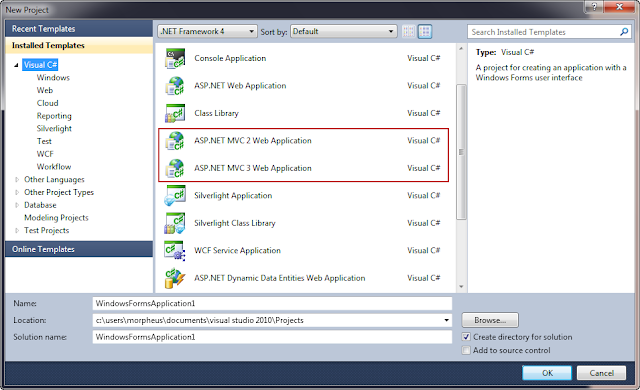

Once the MVC framework is installed, a new project templates are installed, that can be used to develop MVC applications. For this post, I will choose MVC 2 template (and not choosing the option to create unit test project for now). In next posts, I will discuss MVC 3 and Razor view as well. On choosing the MVC 2 template, Visual Studio creates a solution with the project. What we notice is that a few files are already existing in the project.

Note the folders Controllers, Models and Views. As described above, these three folders contain their respective classes, i.e. all controller classes are placed in Controllers folder and so on. When the project is run, it opens the home page. But this should come as a surprise and a question to many who are new to MVC. First, there is no default.aspx page. Second, the Index.aspx page is inside Views folder, not in the root directory. How is the page even fetched? And why does not the URL show the page name that is being called!

Welcome to the first MVC culture shock! I said earlier, MVC is a completely new adventure. The most important thing to notice in MVC is that the URL does not map to a physical file (e.g. an aspx page). Instead, the URL maps to a controller class. So instead of a URL like http://localhost/Library/Book.aspx which would open the Book.aspx file, the URL in MVC looks like http://localhost/Library/Book and it maps to BookController class. We will talk about URL mapping again later.

Now, about the question on how does the server know which page to open as the default page. The secret lies in Global.asax file.
public static void RegisterRoutes(RouteCollection routes)
        {
            routes.IgnoreRoute("{resource}.axd/{*pathInfo}");

            routes.MapRoute(
                "Default", // Route name
                "{controller}/{action}/{id}", // URL with parameters
                new { controller = "Home", action = "Index", id = UrlParameter.Optional } // Parameter defaults
            );

        }
The Global.asax.cs file has a method named RegisterRoutes. This is the location where the URL mapping is listed out. We will talk about routes again when we talk about URL routing, but for now, refer the section where a MapRoute method is called mentioning the Default route should be the "Home" controller and the action (the view action) should be Index. This is why the first time the site runs, the HomeController class is called and its method Index is called (since action was specified as Index). The Index action actually returns a type ActionResult which is nothing but a view named Index which should exists in Views/Home/Index.aspx. This should give a glimpse on how the folders are structured.

To summarize, the Controllers are the entry point of an application. The URL maps to a Controller class. A controller class contains action methods. For each controller, a folder is created in Views folder and in this folder, the views for each action specified is placed. So, if HomeController class has two action Index and About, the folder Views/Home should contain Index.aspx and About.aspx. If the URL provides an action to be called, then the specific action of the controller is called, otherwise the Index action is called by default. So a typical URL would be of the following format:

/Controller/Action/Parameters

Lets try this by creating a new controller. To add a new controller, right click on Controllers folder in solution explorer and choose Add > Controller. A new controller class is added.
namespace Library.Controllers
{
    public class BookController : Controller
    {
        //
        // GET: /Book/

        public ActionResult Index()
        {
            return View();
        }
    }
}
Notice a few things. The controllers belong to the ProjectName.Controllers namespace by default. Each controller class inherits from the Controller base class. And an action Index is added by default.

The controller gets data from Model and feeds it to the View. So, lets add a model class. Right click on Models folder in solution explorer and choose "Add > Class". Notice the namespace Projectname.Models.
namespace Library.Models
{
    public class Book
    {
        public int bookID;
        public string bookName;
        public string authorName;

        public Book(int ID, string name, string author)
        {
            bookID = ID;
            bookName = name;
            authorName = author;
        }
    }
        
    public class BookCollection
    {
        List<Book> booksCollection = new List<Book> { };

        public void AddBook(int bookID, string bookName, string author)
        {
            booksCollection.Add(new Book(bookID, bookName, author));
        }

        public List<Book> List()
        {
            return booksCollection;
        }
    }
}
Let me explain what we have here. In the namespace Library.Models (where Library is my project name), I have created two classes: Book and BooksCollection. The Book class is a simple entity structure holder with a constructor. The BookCollection class has methods to add books to a local list and to return the list. To start with, we have no books! ;).

For this example (since we do not have a database), I will fill the data through controller. Practically, data should flow from database into model and then controller should pass the model to view. So now our Index method in BookController class should be like:
public ActionResult Index()
{
    Models.BookCollection books = new Models.BookCollection();

    books.AddBook(1, "Five point someone", "Chetan Bhagat");
    books.AddBook(2, "2 states", "Chetan Bhagat");
            
    return View(books);
}
Simple enough. The model is populated with two book details and passed to the view. Now, lets add a view for the Index action. The easiest way to do this is to right click on the Index method in the code window of HomeController class and choose "Add view", choosing the default master page for now. A folder for the new controller is added in Views folder and an Index.aspx file is created. Lets use the message to display it in the content section.
<%@ Page Title="" Language="C#" MasterPageFile="~/Views/Shared/Site.Master" Inherits="System.Web.Mvc.ViewPage<Library.Models.BookCollection>" %>

<asp:Content ID="Content1" ContentPlaceHolderID="TitleContent" runat="server">
 Index
</asp:Content>

<asp:Content ID="Content2" ContentPlaceHolderID="MainContent" runat="server">

    <h2>Book List</h2>

    <div>
        <% foreach (Library.Models.Book book in Model.List())
            { %>
            <li><%: book.bookID.ToString() + ": \"" + book.bookName + "\" by " + book.authorName + "." %></li>
        <% } %>
    </div>

</asp:Content>
Notice in the page directive that I used Library.Models.BookCollection to be the model that the view will be dealing with. (so now a reference to Model in the view page refers to BookCollection model instance passed from controller).

Run the project and use the URL http://localhost:[port]/Library/Book to invoke the BookController's default Index action. There you go! A simple example to use Model-View-Controller.

Lets look at few noticeworthy points before I close this post. The controller class imports from "System.Web.Mvc" which is important because this is the namespace that contains classes to support MVC framework. e.g. ViewData is a dictionary object that is defined in this namespace.Also, the use of "<%:" is new in the view page. This syntax was introduced in .NET framework 4 and it encodes the HTML output before it is sent to output buffer, in contrast to "<%=" that did not encode the HTML before buffering the output.

Keeping it simple for the first post, I will close it here today. ASP.NET MVC has matured and is in its 3rd version now. And there is lots can be done with MVC that I will post subsequently.

Saturday, April 16, 2011

Code Metrics

Well, back again. Microsoft has been using FxCop for its own code analysis purposes for long. With Visual Studio 2008, the code analysis rules were integrated into the IDE itself under the new "Analyze" menu. I will leave static code analysis for some other day. Right now, I am interested in the "Code Metrics" option under Analyze.

Code metrics is a set of measures that helps you to analyze your code and indicates the complexity or maintainability of the code. There are a number of measures out there that you can use to analyze our code. Microsoft uses the best few and provides statistics about your code. Visual Studio provides you statistics on the lines of code, class coupling, depth of inheritance and most importantly, the cyclomatic complexity. Open a project in Visual Studio, go to "Analyze" and select "Calculate Code Metrics..." option.


When the code metrics is calculated for the project, the results are displayed in a window. The result window contains the metrics for each and each of their methods (functions).

 
Against each class/method, what we can see is a numeric value as Maintainability Index, Cyclomatic Complexity, Depth of Inheritance, Class Coupling and Lines of Code. So what these terms really mean?

  • Cyclomatic Complexity
                  Cyclomatic complexity is defined at the method level. It indicates the structural complexity of the method. The cyclomatic complexity of a method is the count of the total number of independent paths in the method. So, each branch (if, else, select etc.) and each loop (for, while etc.) counts towards the cyclomatic complexity of the method. The more number of branches and loops within a method, the higher the complexity. The cyclomatic complexity of a method has a direct impact on the maintainability and testability of the code, and it has been one of the successful and useful measures of code complexity.

                 The following table explains the range of values and the associated risk.

Cyclomatic Complexity Risk Evaluation
1-10 simple module, not risky
11-20 moderately complex, moderate risk
21-50 complex method, high risk
>50 a very complex and unstable method, very high risk

Further details on how to calculate cyclomatic complexity can be found here.

  • Depth of Inheritance
                 The depth of inheritance is defined at the class level. It is the number of classes that the current class extends till the root of the class hierarchy. The deeper the hierarchy, he higher is the complexity of code.

                 A class hierarchy up to depth 6 is acceptable. Anything higher should be subjected to a revision of the class hierarchy.

  • Class Coupling
                 Class Coupling is defined at the class level. It is the number of classes the current class is coupled with (interacts with). The interaction can be in any form e.g. function calls, returning parameters etc. A class is considered more stable if it is less coupled (i.e. it is more cohesive in nature). Less coupling means there are lesser chances of the class breaking other classes or getting broken by a change in other classes.

                 Although it highly depends on the design and architecture followed, a coupling indicator above 30-40 should be subjected to revision.

  • Lines of Code
                 Lines of code indicate the number of lines of code in a method or a class. Visual Studio counts the number of lines in the IL code and can differ from the lines of code in the source file. This is an old measure of code complexity and can be highly misleading. However, it must be accepted that a method or a class of a huge size is not easily maintainable.

                 While there is no hard and fast rule on the range of lines of code a method or a class should have, it is advised to limit a method below 60 lines of code and a class below 1500 lines of code.

  • Maintainability Index
                 Maintainability Index is a calculated measure based on the above measures that Visual Studio uses to indicate whether method or a class is maintainable. Maintainability Index per module is calculated using the following formula:

Maintainbility Index = 171 - 5.2 * avg (Halstead Volume) - 0.23 * (Cyclomatic Complexity) - 16.2 * avg(Lines of Code)

, where Halstead volume is a measure calculated from the number of operators and operands in the module.

                 A module is considered maintainable if its maintainability index is in a higher range. The index is calculated in a range of 0-100, where 0 being the least maintainable and 100 being the most maintainable. The following table explains the range of values and their meaning.

Maintainability Index Maintainability of Code
20-100 Code is very maintainable (indicated as green)
10-19 Code is moderately maintainable (indicated as yellow)
0-9 Code has poor maintainability (indicated as red)

Although an index above 20 is considered maintainable, it is advised to keep the maintainability index higher than 50 for well maintainable code.

Code metrics is is available only in Visual Studio Team System editions, not in Professional or Standard Editions. However, there are other utilities available including the command line based Code Metrics PowerTool from Microsoft itself that can serve the purpose if you do not have the Team System editions. I will write another post on how to use the PowerTool, but hope this post helps you to understand and get familiar with code metrics in Visual Studio.

Wednesday, September 8, 2010

Keyboard shortcuts poster

Just found that the team at Microsoft has published a printable list of keyboard shortcuts for Visual Studio 2010. I have downloaded my copy for C#, and it will be on my desk by the morning. Don't doubt, this is a must have no matter how much time you spend with Visual Studio IDE.

You can download them here. Choose the file and format for your favorite language.

If you are using Visual Studio 2008 and missed the poster, you can download the keyboard shortcuts poster for C# here and VB here. Don't miss it!

Tuesday, September 7, 2010

Null-coalescing operator in C#

This is the first time I seriously took an opportunity to look at null-coalescing operator in C#. Introduced in C# 2.0, this is one cool operator that I have hardly put into practice. Well, until now but not anymore. :)

Null-coalescing operator is used to define a default value for nullable types as well as reference types. Let's look at an example.
loginName = loginName ?? "guest";
What we are doing here is using the null-coalescing operator to check whether "loginName" is null. If it is null, the default value "guest" is assigned to it. This could have been done otherwise using a if-else block:
if(loginName == null)
   loginName = "guest";
, or even using a ternary operator:
loginName = (loginName == null) ? "guest" : loginName;
But isn't the null-coalescing operator more sweeter version! In case of strings, I would advise you to use IsNullOrEmpty or IsNullOrWhitespace methods of string class. One way to make sure you get a trimmed login name, you could use a combination as above:
loginName = (string.IsNullOrWhiteSpace(loginName) ? null : loginName.Trim()) ?? "guest";
One more example can be when you need to know if a connection is initialized yet or not. And if not, initialize with the default connection string.
conn = conn ?? new SqlConnection(defaultConnectionString);
Lets look at one more example. Consider a method that sets an Employee status to active. The method also makes sure that if it is passed a reference to an employee not initialized yet, it creates a new active employee and returns it.
public Employee SetEmployeeActive(Employee emp)
{
    //if employee object is not initialized yet, initialize it
    emp = emp ?? (new Employee());
    emp.IsActive = true;

    return emp;
}
Happy null-coalescing!

Sunday, September 6, 2009

Good programming practices

While conventions and standards introduce uniformity to code and make it easily understandable, developers are strictly advised to follow some good coding practices listed over a period of time. If you browse the Internet, you will find a vast number of resources available on good programming practices. Some of them have stood with time and are always relevant, some are not really significant and some do not go along with our conventions. However, there are a few points that are relevant to our organization and to the general C# developers; and applicable to the code we write regularly.

Today, we will have a look at such “good programming practices”:

Variables
  • Declare one variable per line. Do not list multiple variables in the same line although they are the same type. By declaring one variable per line, you can easily add comment for each variable, which you should (must for member variables).
  • Declare and initialize variables in the same order they are used. This applies to both member and local variables.
  • Always initialize variables, if possible at the point of declaration. There should a valid reason if a variable is not initialized.
  • Declare and initialize variables close to where they are used. This is very important because only by identifying their scope of usage, one can decide which variables should stay local and which variables are required as member variables. The idea is to declare and use variables as locally as possible. By declaring variable close to their usage, however, does not mean that variables should be declared anywhere. In methods, the variable declarations should be on the top.
  • Do not make member variables public or protected. Keep them private and expose them through public/protected properties.
  • In a method, use “this.” for member variables. This way, member variables can be easily distinguished from local ones.

Constants
  • Constants should be used instead of hardcoded numbers in code. Declare and initialize constants at the top and use them throughout the code.
  • Remember, the rule for variables about one declaration per line applies to constants as well.

Session variables
  • Use session (or even application) variables sparingly. Session variables should be used only when some data has to be stored throughout the session of the user. Never use them for temporary storage purposes.
  • Do not store large objects in session variables. 
  • Do not use session variables throughout the code. Use session variables only within the classes and expose methods to access the value stored in the session variables.

Control flow (branches and loops)
  • All flow control primitives (if, else, while, do, for, switch) should be followed by a block (a pair of curly braces) even if it is empty. Remember to put a curly brace on a new line always.
  • All switch statements should have a default label as the last case label. 
  • Convert strings to lowercase or uppercase before comparing. It is important to bring string on both sides of a condition to one case before performing comparisons.
  • Do not make explicit comparisons to boolean values: true or false. 
  • Use ternary operator for simple if-else statements. 
  • Use String.Empty instead of “” while checking if a string is empty.
  • Do not compare floating points using == or != operators. 
  • Use StringBuilder class instead of String when you have to manipulate string objects in a loop.
  • When casting types, always check if there is a possibility of loss of precision.

Methods
  • Name a method so that it tells what it does. It saves you from writing lot of comments. For example, instead of naming a method that saves a phone number as SaveData (string phoneNumber), use SavePhoneNumber (string phoneNumber).
  • Do not create two methods with names that differ only by case (although their purpose or scope is different). This applies to all objects including namespaces, classed, variables etc.
  • A method should not have only one return statement. Avoid multiple or conditional return statements.
  • Never return null for an empty collection.
  • All variants of an overloaded method should be used for the same purpose and have the same behavior.

Events and delegates
  • Always raise events through a protected virtual method.
  • Always use the sender/arguments signature for event handlers.
  • Do not programmatically call an event handler. Instead, code the action in a separate method and call the method.

Some general tips
  • Avoid fully qualified type names. Use the using statement instead.
  • Do not hardcode strings. Use resource files.
  • Always use external style sheet to control the look and feel of the pages (even for images).
  • Keep name of querystring arguments short (2-3 characters). For e.g., use “fn=test.txt&v=1.1” instead of “filename=test.txt&fileversion=1.1”.
  • If you have opened database connections, sockets, file stream etc, always close them in the finally block.
  • Always set a reference field to null after usage to tell the Garbage Collector that the object is no longer needed. 
  • Avoid implementing a destructor. If a destructor is needed, also use GC.SupressFinalize.

Code structure: Size and layout

How many times have you come across a source file that is so huge in length that to trace a part of code in it can get you sick, not only because there is too much of code to dig into but also because the scroller is too small to grab? ;-)

It is important to know when it is enough!

  • If a method exceeds beyond 30-40 lines, you should consider splitting into further segments. Rarely business logic has to be written above 40 lines without an option to divide it into segments. As long as dividing the code into methods makes sense, it does not matter. Compartmentalized code only makes it readable and easier to understand.
  • Watch the number of arguments that a methods has. If the list of arguments exceeds 5-6, think again. May be, you can use a structure as class for it. You don’t want to have a terrible argument list as the COM methods in Office Automation, do you?
  • 300-400 lines of code in a file already make the file huge. If a source file exceeds this limit, you must be missing something. Check if a new class can be introduced or your code is not optimized enough.

Layout of code

Just like a blueprint for a building or an editor’s draft of a book, the code layout is very important. When you are using Word or any similar editor, have you not noticed how many option are available to format the text (with options for headings, subheadings, emphasis and much more; we call them markup)? What is the advantage of a good layout or formatting of code? You make the code readable and help others to easily maintain it when needed.

How easy it is to understand a statement like this:

querystring="name="+userName+"&userid="+userID+"&email="+email;

For developers who are familiar with Visual Basic (that uses & operator to concatenate) and C# (that uses + operator to concatenate), this statement must hold you for a while before you figure out which operator is used to concatenate the string.

Now what about this:

querystring = "name=" + userName + "&userid=" + userID + "&email=" + email;

It is the same statement, but the concatenation operator (+ in this case) is so distinct compared to earlier example.

Let us talk about the standards for code layout:

  • Always indent code. Use tabs to indent code, not spaces.
    There is enough argument on the web on whether to use spaces or tabs to indent. Using tabs can be troublesome if different developers use different length of spacing for tabs, while using spaces has always been a tedious job. However, when all developers are using the same editor (everyone in our organization uses Visual Studio 2005 or 2008 for development in C# with default setting of tab at 4 characters), using tabs is the best way to indent.

  • Never leave more than one blank line between statements.
    Blank lines should be used to separate units as methods, and also separate different segments of code for clarity. However, it is never necessary to use more than one blank line anywhere in code. Avoid using more than one blank line, but do not forget to use blank lines completely. You must use a single blank line always to separate methods and logical segments of code.

  • Know when to use spaces and when not.
    • Always use a space between an operator and an operand. However, in case of unary, increment or decrement operator, do not use a space between the operator and the operand.
    • For flow control primitives (if, else, while, do, for, switch), always put a space between the keyword and the starting bracket. But do not use a space between bracket and text inside a bracket.
    • Always follow a comma or a semicolon with a space.
    • Do not use a space between the methods name and bracket in method while defining or calling a method.
    • Do not use a space within square brackets for subscripts.

 Bad:
if (x==y)
for(i=0;i<10;i++)
BuildSampleString ( myChar, 0, 1 );
x = dataArray[ index ];
Good:
if (x == y)
for (i = 0; i < 10; i++)
BuildSampleString(myChar, 0, 1);
x = dataArray[index];

  • Always put curly braces on a separate line.
    For example:

    class MyClass {
       …
    }

    or

    if (x == y) {
       …
    }

    should be written as:

    class MyClass
    {
       …
    }

    and

    if (x == y)
    {
       …
    }

It takes time for developers to get into this habit if they already are not following this. But with IDEs like Visual Studio helping developers with auto indentation and spacing, it is not very difficult for developers now. So, no excuses! ;-)

Code structure

The standardization of the structure of code is important to allow developers locate objects quickly, trace bugs more effectively and not the least, make the code readable and explanatory. Let us talk about the structure of code today.

I checked multiple sources from Microsoft and also scanned through the code gallery at MSDN to study how people organized their code. I did not find uniformity of order in MSDN samples and other code from the very developers from Microsoft. Some code in gallery even declare member variables at the end of the class while some code use underscore for member variables, which we have strictly avoided. At some point, I thought, we have no rigid reference to stick to, but we will create our standards as close as possible. In fact, I had already speculated that as long as the order of code was followed throughout the application, it hardly mattered which order was put into practice. But I was curiously looking for a scientific order that had explanation. For example, to have events and public methods above private methods makes sense because it helps quicker maintenance, most of the times. There is no scientific backup to support this, but if you work on maintenance of a source for a while, you should feel the same.

First and foremost, "one file, one class" policy is a must. There should not be more than one class in one file. Multiple classes not only tend to make the file size big but also complicate tracing and maintenance. Hence, there should always be one class in a file and the file name according to the class. It is suggested than even if there are objects like enumerators of a namespace level scope, use a separate class for them.

In a source file (C#), the following order should be followed for its contents:

// Copyright information
// File details
// Change log (version history)

Using statements (imports) 

Namespace
{
     Class
     {
          #region Enumerators (of class level scope) 

          #region Static Methods 

          #region Constants 

          #region Member Variables 

          #region Properties 

          #region Constructors and Destructors 

          #region Events 

          #region Public Methods 

          #region Protected Methods 

          #region Private Methods
     }
}

Whenever there is question about ordering based on access specifiers, the ordering should always be done in order of: public, protected and private. Hence, if required to classify events based on access specifiers, public events should come first followed by protected and then private ones.

I am already drowsing now, its past midnight. I will limit today’s discussion on code structure to the order of code. Tomorrow, we will discuss sizing code and more. Goodnight!

Saturday, September 5, 2009

Coding convention – C#: Naming convention

Naming convention is the most important part of standard coding convention. By following a common standard to name identifiers, a common medium of communication is established between the developers. Identifiers are easily recognizable along with their context if a developer knows the standard. Naming convention deals with naming almost every programming objects starting from basic variables to large structures as classes and namespaces.

Before listing the standards, it is necessary to understand three basic terms used in this context:

Pascal case

The first letter of each word in the name is in uppercase and the rest of the word in lowercase. If a name consists of more than one word, the first letter of each distinct word should be in uppercase.

For example: BlackColorCode
This name constitutes of three words ‘black’, ‘color’ and ‘code’, hence their first letters ‘B’, ‘C’ and ‘C’ are in uppercase respectively.

Camel case

All letters of the first word in the name is in lowercase. If a name consists of more than one word, the first letter of each distinct word (except the first word) should be in uppercase.

For example: blackColorCode
This name constitutes of two words ‘black’, ‘color’ and ‘code’. All letters of first word ‘black’ is in lowercase. However the following words (in this case ‘color’ and ‘code’) have their first letters, both ‘C’, in uppercase.

Hungarian notation

Hungarian notion is a notation used to name objects by prefixing their type in the name.

For example: strBlackColorCode
It identifies the variable as a string type, where ‘str’ is an abbreviation used for string type. With typed languages like C#, Microsoft has chosen to get rid of Hungarian notation and so shall we. We will use Hungarian notations sparingly (almost try not to use at all).

Naming convention

In the table below, let us have a look at how to name various programming units in C#. The first column has the programming unit, the second has the details about which case to be used (and special conditions, if any) and last column has an example to illustrate.

Identifier
      Convention
Namespace
  • Use Pascal case
  • No abbreviation or underscore
  • Format:
    {CompanyName}.{Technology}[.Format][.Design]

    Example(s):
    MyCompany.Service.Data

Class
  • Use Pascal case
  • No abbreviation or underscore
  • No prefix or suffix (avoid Hungarian notation; however and Exception class should have a suffix “Exception”)

    Example(s):
    FileLogger

Interface
  • Use Pascal case
  • No abbreviation or underscore
  • Name should be same as the implementing default class
  • Prefix character ‘I’ to indicate an interface

    Example(s):
    IFileLogger

Enumerator
(Type and Values)
  • Use Pascal case for both type and values
  • Use singular name for types (exception: use plural for type representing bitfields)
  • No abbreviation or underscore
  • No prefix or suffix (avoid Hungarian notation)

    Example(s):
    LoggingLevel
    High, Medium, Low
Property
  • Use Pascal case
  • No abbreviation or underscore
  • No prefix or suffix (avoid Hungarian notation)
  • Name of a property and underlying type should be same (only differing in case)

    Example(s):
    ListKey
Variable
  • Use Camel case
  • No abbreviation or underscore
  • No prefix or suffix (avoid Hungarian notation)

    Example(s):
    firstName
Constant
  • All letters in uppercase
  • No abbreviation
  • Use underscore to separate words (or to identify groups)
  • No prefix or suffix (avoid Hungarian notation)

    Example(s):
    MATURITY_AGE

Method
  • Use Pascal case
  • No abbreviation or underscore
  • No prefix or suffix (avoid Hungarian notation)

    Example(s):
    LoadProjects

Parameter
  • Use Camel case
  • No abbreviation or underscore
  • No prefix or suffix (avoid Hungarian notation)

    Example(s):
    fileName

Event
  • Use Pascal case
  • No abbreviation
  • Suffix “EventHandler” for event handlers and “EventArgs” for event arguments
  • Method must have two arguments: sender as the object that raised the event and
    e as the appropriate event class
  • Name events with a verb (-ing form for pre-events and –ed form for post-events)

    Example(s):
    SaveButton_Clicked
    MyPanel_Painting
Attribute
  • Use Camel case
  • No abbreviation or underscore
  • Suffix the word “Attribute”

    Example(s):
    ObsoleteAttribute


Besides the standards mentioned in the chart above, the following should be taken care of:
  • Do not declare two identifiers with same name only differing in case.
  • Name an identifier according to its meaning not its type.
  • Always add “EventHandler“ to delegates related to events and “Callback” to delegates related to callback methods.

Coding convention - C#

The importance of a standard coding convention is often ignored in many small and medium scale software companies. Most of the times, they make an effort to establish a convention but due to limited manpower and in absence of departmentalized role of employees, initial efforts either fade midway or the convention gets limited to documents. When there are developers coding, there should always be a mechanism to monitor their code. Like every other discipline, coding needs a constant monitor and review too.

Upon analyzing the code written over a number of years in our own organization, I decided to streamline the process and with reference from a number of guidelines used including the very own guidelines by Microsoft, I compiled a coding convention document for C#, to start with. I have also developed an easy and quick tool for developers to verify their own code against the convention. As developers have now started using the tool and it is constantly recording the data, I will be working on the reports soon using which it will be possible to crosscheck how effective this implementation has been.

I thought, maybe it is a good idea to share the details of my presentation and post the convention with possible explanation on this blog. It might be of some use to people looking for establishing their own standards. Hence I will be posting the details with explanation over this and next blogs.

Why coding convention?

If you are a developer, has any of these every happened to you?

Who wrote this code? What? It was me? ...But when?
Before I can fix anything, I have to contact the developer who wrote this code, to have this explained.
Does this code even work?
Where does this code start? And where does it end?

Well, based on what the software industry has to say, more than 80% of a software life cycle goes to maintenance. As Sun Microsystems puts it, hardly any software is maintained by its original author for its whole lifetime.

Many developers work on one project, even one module. Every developer has his/her own coding style. To bring uniformity and to get rid of the situations mentioned in italics above, it is important to set standards and ensure that they are followed. Following standards makes a huge positive impact on maintenance of projects.

The objective of setting coding standards is to have a positive impact on:
  • Avoidance of errors/bugs.
  • Maintainability, by implementing proven design principles and introducing uniformity of style.
  • Performance, by eradicating poor programming practices. 

We will start with naming conventions in next blog.